
How wired and wireless connections compare for video calls, large file transfers, security and setup effort, and the hybrid arrangement that suits most home offices.
This guide is general information, not technical or legal advice. If you’ve lost money or personal information, contact your bank, IDCARE on 1800 595 160, or report it through ReportCyber at cyber.gov.au.
Quick summary
- Ethernet offers lower and steadier latency because it does not share the noisy radio spectrum, which is why video calls and file transfers hold up better on a cable.
- Wi-Fi speed falls with distance, walls and congestion; one comparison measured around 126 Mbps over Wi-Fi against 395 Mbps over Ethernet on the same plan.
- A wired connection needs physical access to attack, while Wi-Fi needs WPA3 encryption, a changed admin password and regular firmware updates.
- Slim laptops often lack Ethernet ports, so a small adapter may be needed before you can go wired at your desk.
- Most home offices suit a hybrid: cable for the call and transfer machine, Wi-Fi for phones, tablets and everything else.
Video calls that freeze mid-sentence and uploads that crawl are common complaints in home offices, and the link between your computer and your router is often the cause. Ethernet and Wi-Fi both get you online, but they behave very differently under pressure. Here is how the two compare on reliability, speed, security and the effort involved in setting each one up.
What each setup actually involves
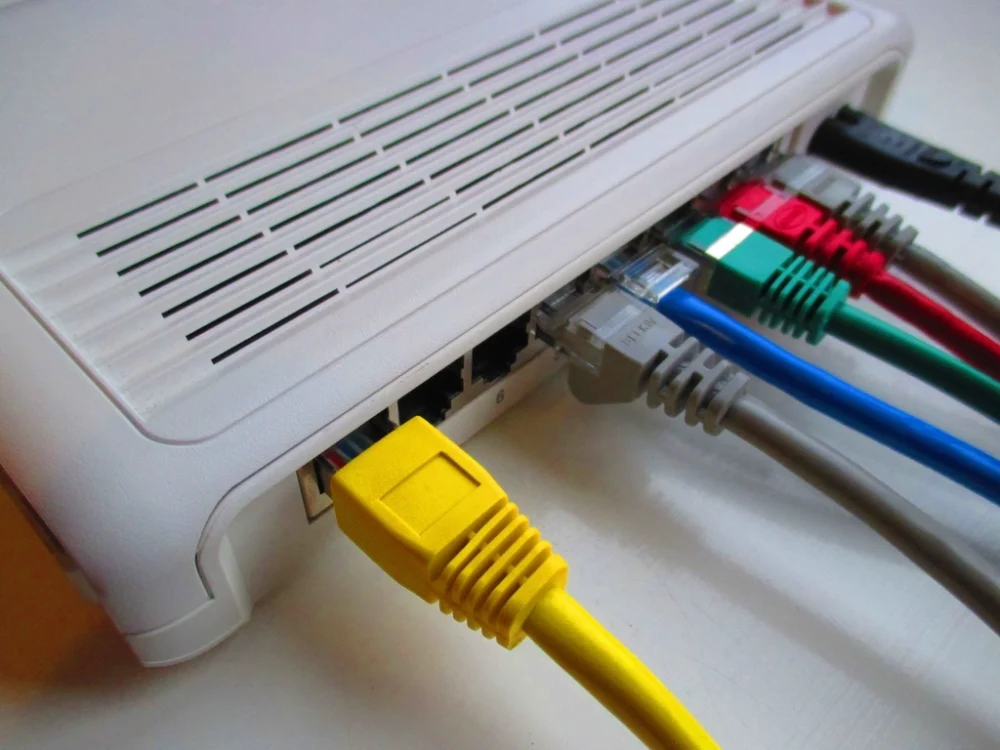
Ethernet is a physical cable running from your device to your router. In most Australian homes, the box in the corner is a modem router: the modem handles the internet connection, while the router and switch parts manage local connections, wired and wireless. Plug a cable in and the router assigns your device a private IP address automatically through a protocol called DHCP, so there is nothing to configure by hand.
Wi-Fi takes the same connection and transmits it as radio waves. Your laptop, phone or tablet picks those waves up and sends data back the same way, in a constant two-way exchange. The signal degrades as it travels, so distance, your home’s layout and its construction all shape the performance you actually get. Signal aimed towards an external wall or window is partly spent on the street or the yard rather than the rooms you work in.
One practical wrinkle: many smartphones, tablets and slim laptops have no Ethernet port at all. For those devices, Wi-Fi is the only option unless you buy a small adapter.
Reliability and latency: why calls drop on Wi-Fi
The radio spectrum is a noisy, shared space. Every neighbouring network and wireless gadget competes for the same air, and Wi-Fi has to wait its turn. That waiting shows up as latency, the time data takes to travel from your device to its destination and back. For browsing, a few extra moments mean nothing. For a video call, higher latency means people talk over each other, audio garbles and video freezes.
Tests published by one home networking writer make the pattern clear. On an idle connection, wired and wireless latency were broadly similar, with Wi-Fi showing occasional blips. Under a heavy load, Wi-Fi latency spiked badly while the wired connection stayed comparatively steady. The loaded Ethernet connection even outperformed idle Wi-Fi.
Distance and walls compound the problem. The further you sit from the router, and the more plaster, brick or concrete between you and it, the weaker and less stable the signal becomes. A cable is immune to all of that.
Speed: what the cable gives you and when Wi-Fi is enough
A wired link supports high-speed data transfer, with common Ethernet speeds of 1 Gbps and higher. Wi-Fi speed depends on your router, its placement, how many devices are connected and what stands between you and it, so two homes on identical plans can see very different wireless results.
The gap can be large. In one head-to-head test by a technology journalist, a connection that delivered around 126 Mbps over Wi-Fi reached 395 Mbps once a cable was plugged in, within 5 Mbps of the plan’s advertised speed. For context, streaming video in Ultra HD 4K needs only about 25 Mbps, so Wi-Fi has plenty of headroom for streaming and ordinary video calls in many homes.
The difference matters most for work that pushes large amounts of data around: syncing folders to cloud storage, uploading project files or restoring from a backup. Our guide to cloud storage explained covers how syncing and sharing work, and how to back up your photos and files walks through the backup side. If those tasks are part of your week, a wired connection shortens the wait, and because a stationary desktop on Ethernet stops competing for wireless bandwidth, other devices in the house benefit too.
Security: a wired connection versus your home network
A wired connection is harder to attack remotely because it requires physical access to your network. Wi-Fi broadcasts through the air instead, which makes securing it non-negotiable. Someone can attempt to piggyback on a weakly secured wireless network from up to 1000 feet away, and once inside a network, an intruder can monitor traffic or spread malware.
The defences are straightforward, and they apply to every home office:
- Set encryption to the strongest type your hardware supports. WPA3 is the strongest option currently available.
- Change the default administrator password on your router. The admin account controls your network’s settings, and default passwords are widely known.
- Make your Wi-Fi password strong and different from the admin password. A long passphrase is easier to remember and harder to crack, as our guide to passphrases explained sets out.
- Update your router’s firmware when updates appear. An older router may no longer receive support at all, which leaves an open door.
There is also a structural layer of protection worth knowing about. Home networks use NAT, which lets every connected device share a single public IP address while keeping the private addresses of your devices hidden from the outside. That helps whether devices connect by cable or by air, though it is not a substitute for the steps above.
Handy tip
If your router is an older model, check the manufacturer’s support pages to confirm it still receives firmware updates. If it does not, put a replacement on your home office shopping list.
Cost and hassle: cables, adapters and routers
The cable itself is inexpensive, but the effort scales with distance. A run along the skirting board from the lounge room to your desk is a ten-minute job. A tidy connection between rooms can mean drilling small holes, lifting carpet or going through the roof space. One writer who ran a cable through his attic described the whole project, from drilling to testing, as taking about an hour. If your laptop has no port, add an adapter to the shopping list.
Wi-Fi asks less of you up front, but getting the best from it takes effort too. Position the router as close to the centre of your home as you can, out in the open and away from external walls and windows. In a large or multi-storey home, or a house with plaster, brick or concrete walls, a mesh system that uses several access points spread around the house may be the realistic way to get solid coverage to a home office.
A practical hybrid setup most home offices land on
Most home offices work best with a mix of both. Keep the machine that hosts your video calls and handles large transfers plugged into the router, and let phones, tablets and everyone else’s devices stay wireless. That gives your work the stability of a cable without turning your home into a cabling project.
| Ethernet (wired) | Wi-Fi (wireless) | |
|---|---|---|
| Setup effort | Run a cable to your desk; adapters for portless laptops | Minimal at first; router placement and possible mesh gear for big homes |
| Reliability on calls | Low, steady latency; unaffected by walls and neighbouring networks | Higher and less predictable latency, worse under load and at distance |
| Speed for big transfers | Commonly 1 Gbps and higher; close to a plan’s full speed in one test | Varies with distance, walls, router placement and how busy the network is |
| Security | Needs physical access to attack | Needs WPA3, a strong passphrase, a changed admin password and firmware updates |
| Suits | Stationary desktops, daily video calls, large uploads, dead spots | People who move around, wireless-only devices, renters and cable-free homes |
Frequent movers and wireless-only devices have no real choice, and for a laptop used mainly for email and browsing, Wi-Fi is generally fine. A stationary desktop, a job built on video calls, or a home office at the far end of a big house are the cases where the cable earns its place. Whichever way you lean, keeping your router’s software current matters either way; our guide to why software updates matter explains how to stay on top of them across all your devices.
If you take one step this week, make it this: plug a cable into whichever device hosts your video calls and see whether the next meeting feels steadier.
Your questions answered
Q: Do I need Ethernet for video calls?
A: Not always. Wi-Fi handles calls fine when the signal is strong and the network is quiet, but a wired connection keeps latency low and steady, which matters most when several people are using the network at once.
Q: My laptop has no Ethernet port. What now?
A: Many slim laptops omit the port, so you will need a USB or USB-C Ethernet adapter. Plug the cable into the adapter and it works like any other wired connection.
Q: Is Ethernet more secure than Wi-Fi?
A: Somewhat. A wired connection requires physical access to your network, while Wi-Fi signals travel through the air and can be targeted from outside. With WPA3 encryption, a strong Wi-Fi passphrase and updated firmware, a wireless network can still be well protected.
Q: Where should my router go?
A: As close to the centre of your home as practical, away from external walls and windows, and out in the open rather than hidden away. Signal strength drops with distance and obstructions.