
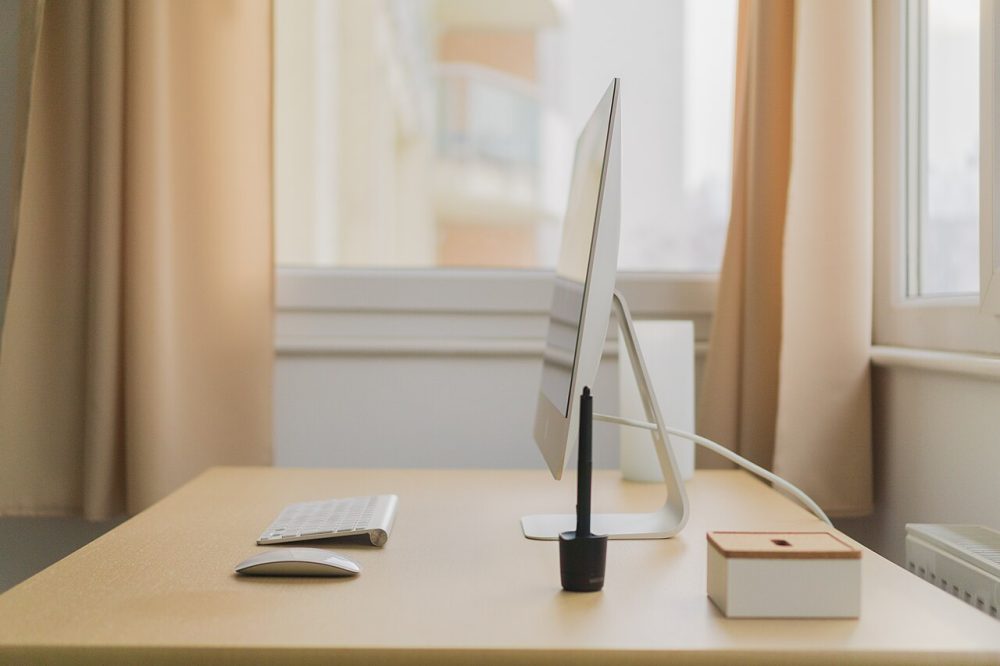
From checking what your job actually needs to desk height, backup plans and the 70 cent fixed rate, here is what to do two weeks out, on day one and at the end of month one.
This guide is general information, not technical or legal advice. If you’ve lost money or personal information, contact your bank, IDCARE on 1800 595 160, or report it through ReportCyber at cyber.gov.au.
Quick summary
- Work health and safety duties have covered people working from home since 2023, so talk to your employer about equipment before buying your own.
- Set the chair so your knees and hips sit near 90 to 100 degrees, and the top of the monitor at or just below eye height, angled away from window glare.
- The fixed rate method lets you claim 70 cents for each hour worked from home, but only if you keep records of those hours from the start.
- Move at least once an hour, and limit standing at a standing desk to about 40 minutes for every one to two hours sitting.
- Run a full review at the end of month one covering comfort, internet, backups, security, records and boundaries.
Setting up a first home office goes better in stages than in one panicked weekend of online shopping. Spread across a fortnight, the jobs stay small: working out what your role needs, getting the chair and screen right, sorting the internet, and building habits that survive contact with a real working week. This timeline runs from two weeks out to the end of your first month, with the tax records worth keeping from your very first day.
Two Weeks Before: Work Out What Your Job Actually Needs
Before you buy anything, write down what the work involves. Hours per day at the computer, how many video calls, whether you handle printed documents, and whether anyone else will use the space. A job that is mostly calls has different demands from one that is mostly spreadsheets.
Next, talk to your employer. Under the Work Health and Safety Act 2011, businesses have a duty to remove health and safety risks wherever that can reasonably be done, and since 2023 those duties have covered people working from home. Safe Work Australia’s model WHS laws apply to the home office just as they do to a company building, and a workstation at home still has to be safe and comfortable. Many employers supply equipment or contribute to it, and some include home office ergonomics in their induction and training. Obligations vary by state and territory, so check Safe Work Australia’s guidance and your state regulator if you are unsure what applies to you.
Then choose the space. A dining table copes with the odd short task, but it puts real strain on your body when you spend full days of computer work at it. Look for a spot where the desk sits near power outlets, where the internet reaches reliably, and where calls will not broadcast your whole household to the team. If calls are a big part of the job, our tips on how to look and sound better on video calls cover lighting, cameras and microphones, and are worth reading before you pick the room.
One Week Before: Your Desk, Chair and Screen Height
Most home office discomfort traces back to a handful of measurements, and a week gives you time to adjust them properly rather than at 9am on your first day.
Start with the chair. The height should adjust so your knees and hips bend at about 90 to 100 degrees, with feet flat on the floor or on a footrest, and enough room at the front edge of the seat to slip two or three fingers in behind your knees. The backrest should support the full curve of your back, armrests should sit just below your elbows, and there should be clear room under the desk for your legs.
Then the desk and screen. The work surface should sit at elbow height or a touch lower, with elbows tucked close to your sides bent at roughly 90 to 100 degrees and the keyboard and mouse level with each other. The top of the monitor belongs at or just below eye height when you look straight ahead, and the screen should sit at right angles to windows so light does not glare across it. Vision drives posture, so a screen that sits even slightly too low has you leaning and craning to see, and the strain builds over a full day.
Laptops need extra help. A riser for the laptop, plus a separate mouse and a standard keyboard, lets you hold a comfortable position for a whole working day instead of hunching over a screen far too low for extended use. If your work suits two screens, our guide to how to set up a second monitor for your laptop walks through the connection and the layout.
There is a reason to be fussy here. Safe Work Australia’s figures for 2025 show body stress was behind 34.6% of serious workers’ compensation claims, making it Australia’s most common workplace injury and one costing almost $1 billion a year. Not every claim comes from a poor desk setup, but good workstation design is a genuine work health and safety measure, and small stresses compound: a screen set a little too low, a chair that skimps on back support, a laptop balanced on the kitchen table from morning to evening.
Handy tip
Test positions with what you already own before spending. A monitor on a stack of sturdy books, or a cushion on a dining chair, tells you within a day whether the height is right and what is actually worth buying.
The Weekend Before: Internet, Power and Backup Plans
Spend part of the weekend proving the essentials work at the desk, not just somewhere in the house.
Sit where the desk will go and run a video call and a large upload. If the call stutters or the upload crawls, a wired connection is worth considering before you blame your plan. Our comparison of Ethernet or Wi-Fi for your home office explains why cables hold up better under load and what running one involves. Wi-Fi can be improved too: moving the router closer to the desk, or lifting it off the floor and away from thick walls, often helps.
Check the power. The desk needs enough outlets for the computer, screen, charger and lamp without a chain of double adapters snaking across the floor, and cables should run along walls rather than walkways.
Set up a backup before day one, not after the first scare. Work out where your files will live and how they will be copied somewhere else, whether that is an external drive or a cloud service, then run the first backup over the weekend so you are not waiting on your first working morning.
Security belongs on the weekend list as well. Turn on automatic updates for your computer and router, set a strong and unique password for your Wi-Fi network, and switch on multi-factor authentication for the accounts that offer it. Our guide to multi-factor authentication covers why it is the easiest big security upgrade for a home office.
Day One: Setting Boundaries and a Start-of-Day Routine
The equipment matters less on day one than the habits, because habits are harder to retrofit.
Decide your start and finish times and write them down. Tell the household when you are working and when you are not, and agree on what counts as an interruption. A visible signal, such as headphones on or a door closed, saves endless negotiation.
Build a short start-of-day routine and run it the same way each morning: same wake time, a few minutes reviewing the day’s tasks, calendar checked before email opens. Ten quiet minutes before the first message lands sets the tone for everything after it.
Movement needs a place in the schedule from the start. Change how you are sitting or working at least once every hour, and a handy rule of thumb pairs every 30 minutes of work with 30 seconds of movement away from the screen. If you have a standing desk, limit standing to about 40 minutes for every one to two hours sitting rather than standing all day. Varying between sitting and standing matters more than the total time spent in either position.
Treat the first call as a rehearsal. Check how you appear and sound, where the light falls at that hour, and whether the doorbell or the dog makes an appearance. Adjust before the important meetings arrive.
End of Week One: What to Fix and What to Claim
Friday afternoon is for two lists: what annoyed you, and what you need to record for tax.
The first list is usually short and cheap to fix. A chair bumped up a notch, a screen raised, a lamp added for the afternoon gloom, a cable rerouted away from the doorway. Fix them now, because small irritations quietly become the way you sit for the next year.
The second list matters more the longer you leave it. The fixed rate method lets you claim 70 cents for each hour worked from home, covering phone and internet, stationery and computer consumables, and energy costs such as power and gas. Under that method you cannot claim those expenses separately, but you can claim the drop in value of equipment used for work, such as a computer or office furniture, along with the cost of maintaining those items and of cleaning a workspace set aside only for work. Keep a log of the hours you put in, and hold on to receipts or other proof that you paid for what you are claiming.
If you would rather claim the actual cost of each bill, the record keeping is heavier: receipts for the expenses, a record of hours worked either as actual hours or a diary kept for a representative four-week period showing your usual pattern, and a record of how you split work use from private use. Whichever method suits, start the records this week, and check with the Australian Taxation Office or a registered tax agent before lodging anything.
End of Month One: A Review Checklist
A month is long enough for real patterns to show. Set aside an hour and work through these questions:
- Comfort: after full weeks of work, is your back still fully supported, are your knees and hips still bending near 90 to 100 degrees, and can you still fit a couple of fingers behind your knees at the seat’s edge?
- Screen: is the top of the monitor still at or just below eye height, and does glare shift through the day as the sun moves?
- Movement: did you actually move once an hour, or did the reminders get dismissed by Wednesday?
- Internet: did calls hold up during your busiest periods, or is a cable or a router move overdue?
- Backup: has it run on schedule, and do you know how to restore a file from it?
- Security: are updates installing, and is multi-factor authentication switched on for every account that offers it?
- Records: are you logging hours worked from home and filing receipts as you go, rather than reconstructing them at tax time?
- Boundaries: are start and finish times holding, or has work crept into the evenings?
Anything that fails twice on this list deserves a fix, not another note. Ergonomics requirements and guidance also vary by state and territory and by the type of work you do, so if a problem feels beyond a simple adjustment, ask your employer what support they can provide.
A home office is a setup you tune rather than a project you finish. When the review is done, put the next one in the calendar for the end of the following quarter, and start it by fixing the single worst item on this month’s list.
Your questions answered
Q: What can I claim under the fixed rate method?
A: The fixed rate gives you 70 cents for every hour worked from home, covering phone and internet, stationery, computer consumables and energy. On top of that you can claim the drop in value of work equipment such as a computer or desk, the cost of maintaining those items, and cleaning a workspace used only for work.
Q: What records do I need for working from home deductions?
A: Under the fixed rate method, keep a log of your working hours and receipts or other proof that you paid for each expense. The actual cost method asks for more: a diary covering a representative four-week period and a note of how you split work use from private use.
Q: Do work health and safety laws apply when I work from home?
A: Yes. Safe Work Australia’s model WHS laws apply whether you work at a company site or at home, and a home workstation still has to be safe and comfortable. Details vary by state and territory, so check the guidance for where you live.
Q: How often should I move during the workday?
A: Change how you are sitting or working at least once every hour. A handy rule pairs every 30 minutes of work with 30 seconds of movement away from the screen, and if you use a standing desk, limit standing to about 40 minutes for every one to two hours sitting.